Firmware
Tesla Model S Hidden Features, Tips, Tricks & Tidbits

A compilation of Tesla Model S Hidden Features Tips, Tricks & Tidbits for your Tesla Model S as curated by the community members of the TeslaMotors Club (TMC).
Each of the members names are credited with their respective tidbit.
Want to submit a tip? Email us  tips@teslarati.com
A) Steering Wheel Controls
- MUTE/PAUSE: when listening to most audio sources, click left steering wheel roller button to pause and resume (or in the case of radio and some streaming services, mutes and unmutes the audio). Nice that this works regardless of what’s displayed on your left-of-speedo info display. [JoshG]
- MIC MUTE: the left steering wheel roller button will mute and unmute the mic when on a call. [DaveVa]
- RECENT CALLS: With a bluetooth phone connected, you can call up a list of recent calls and select one for redial without lifting your hands from the wheel. Click right-side “Menu” button on steering wheel, select the phone icon, and your recent calls will appear on the right-of-speedo info display. Right click-wheel can be used to pick and dial any entry. [JoshG]
- IN-CALL FUNCTIONS: While on a call, clicking the right-hand “Phone” button on the steering wheel brings up a menu of choices such as hang up, mute microphone, or put the call on hold. Select from the options with the right scroll wheel. [Todd Burch]
- SCREEN REBOOT (Main Display): Hold down the middle steering wheel buttons on both sides for a few seconds to reboot the main display.
- SCREEN REBOOT (Driver’s Display):Hold down the top steering wheel buttons on both sides for a few seconds to reboot the driver’s console display. [Todd Burch]
- TAKING SCREEN SHOTS: Hold down the bottom steering wheel buttons on each side for a few moments to grab a screenshot. (Tesla service can access this. We might be able to later). [Todd Burch]
B) Center Console 17″ Touchscreen & Telematics
- FULL-SCREEN SHORTCUT: Clicking an icon along the top edge for an app that’s already displayed makes that one go full screen. Sometimes easier than clicking that tiny little “expand the window” button in the lower corner. Clicking it again in the top bar makes it go back to where it was. [JoshG]
- APP SCREEN LAYOUT SHORTCUTS: The “App” icons from the “Tray” at the top of your 17″ screen can be dragged directly to either the top half or the bottom half of the touchscreen, depending on where you want that app to show up. You can also drag it to the miniature “top-half” and “bottom-half” icons that appear at the top of the screen when you begin dragging an app icon. [JoshG]
- CHARGE SCREEN SHORTCUT: Rather than going through the controls screen, you can simply tap the little Battery icon that is always at the top edge of the 17″ screen. [JoshG]
- BLUETOOTH CONFIGURATION SCREEN: tap the little bluetooth icon that is always at the top of the 17″ screen. [JoshG]
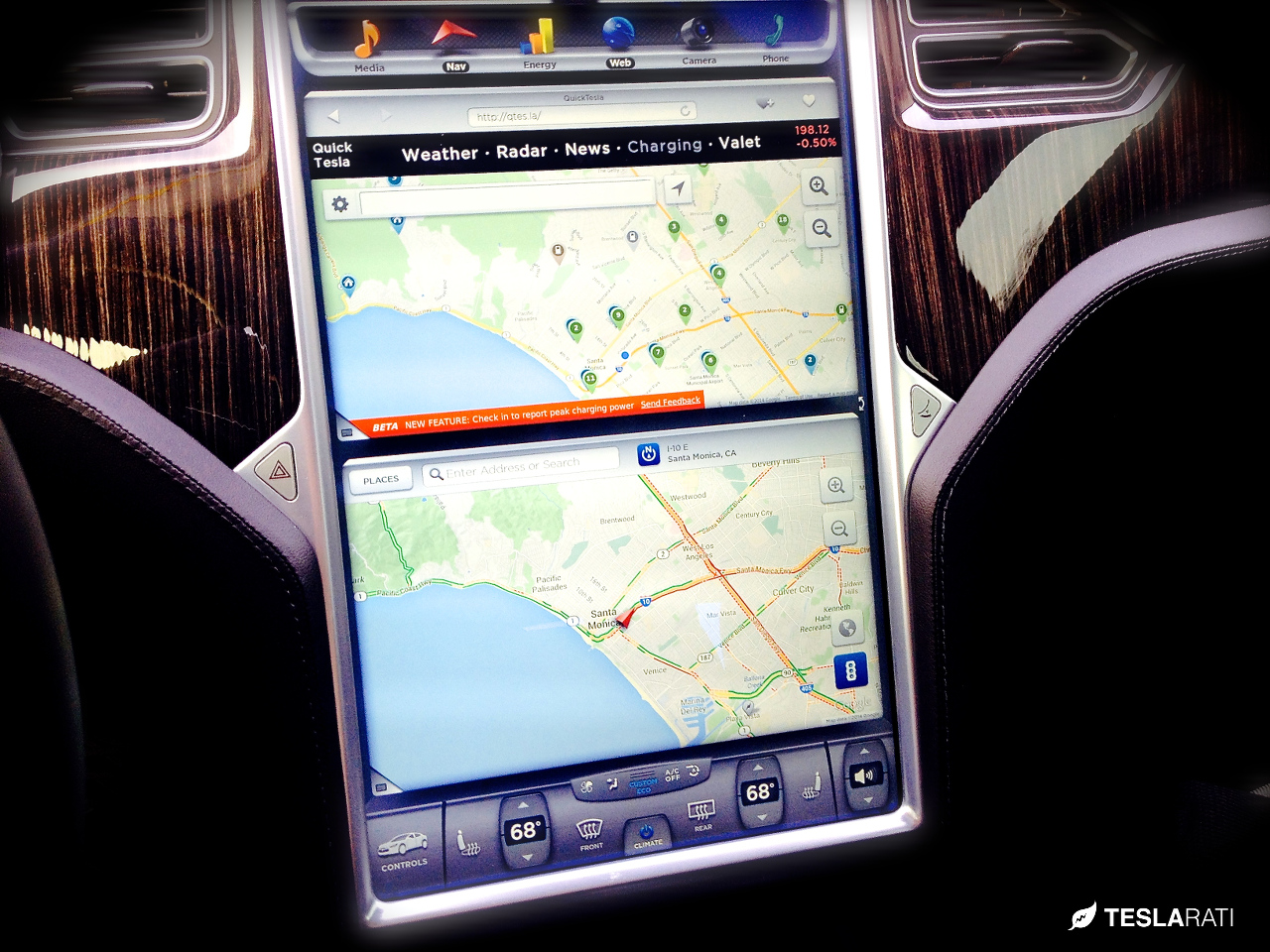
- CHARGER MAP + NAV + TRAFFIC:
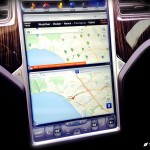 Split the touchscreen so that PlugShare’s http://tesla.plugshare.com charger map is on top using the Tesla browser. Load the Tesla map powered by Google in the pane below. This will allow you to see EV chargers within your proximity while retaining turn-by-turn navigation with traffic conditions. [Teslarati]
 - SIRI: iPhone 4S and later can use Siri when paired with your Model S. Mic and speakers in car will function for siri’s voice input and output. However, as of now, there’s no way to trigger Siri from the vehicle controls, you’d still have to press and hold your iOS device home button. [rlowenth]
- TESLA ‘About’ SCREEN: Pressing the tesla logo on the 17″ screen brings up an image of your car, showing your VIN#, firmware version, and most recent firmware release notes. The image of the car on screen should match your actual car’s color, wheel choice (?), roof type, headlights/fogs/DRL state. left turn signal or flashers state, and brake light state. (High beams, pano roof status and windows are not dynamically drawn to match their current state.)
- TESLA ‘EASTER EGG MENU’: An easter egg menu presents all easter eggs that can be activated from a single touch. The menu can be accessed after clicking on the Tesla “T” and then swiping down from the image of the vehicle. Here’s a video outlining how to access Tesla’s Easter Egg Menu.
- TESLA ‘SANTA MODE’ EASTER EGG: This Christmas-themed easter egg called “Santa Mode” transforms your vehicle into Santa’s sleigh and comes with its very own reindeer! Here’s you you access it.
- TESLA ‘SKETCH PAD’ EASTER EGG: Elon Musk reveals a new ‘Sketch Pad’ easter egg that allows one to draw and ‘paint’ directly on the Model S and Model X touchscreen.
- TESLA ‘MARS’ EASTER EGG: Elon Musk baked in the ability to transport your Tesla Model S and Model X to the surface of Mars by activating this easter egg.
- TESLA ‘PERFORMANCE MODE’ EASTER EGG: Simulate different Model S and Model X versions by toggling between performance options. See how to enable ‘performance mode’
- TESLA ‘RAINBOW CHARGE PORT’ EASTER EGG:
Turn the Model S and Model X charge port LED into an array of colors while charging. See how to enable ‘rainbow charge port’ - TESLA ‘COWBELL ROAD’ EASTER EGG:
Elon Musk reveals via Twitter how to put your Autopilot-enabled Tesla on drugs. See how to enable ‘psychedelic cowbell road’  TESLA ‘MEANING OF LIFE’ EASTER EGG:
“The Answer to the Ultimate Question of Life, the Universe, and Everything” See how it’s done- TESLA LUDICROUS MODE EASTER EGG:
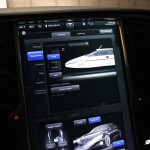 Display an animated graphic of Ludicrous Speed made famous by the movie Space Balls, toggle to and hold down ‘Ludicrous’ for 5 seconds. See the video
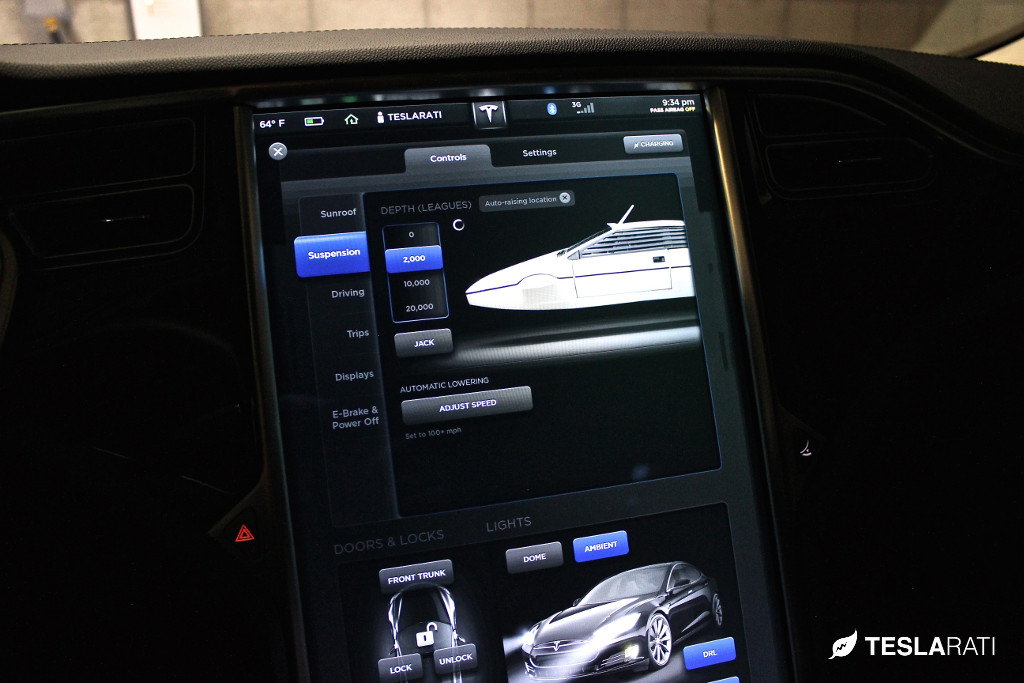
 - JAMES BOND SUBMARINE EASTER EGG: Unlock the famed Lotus Espirit submarine from the James Bond movie, The Spy Who Loved Me, by pressing and holding the Tesla logo, enter 007, hit OK, and then go to the suspension menu [video]. [great.white.buffalo] of Instagram
- TESLA TEAM EASTER EGG: Pressing the tesla logo on the 17″ screen brings up an image of your car. Press and hold the lower right corner for 10 seconds where the Model version is displayed will make the car zoom off and reveal a picture of the Tesla Staff. [aaron0k]

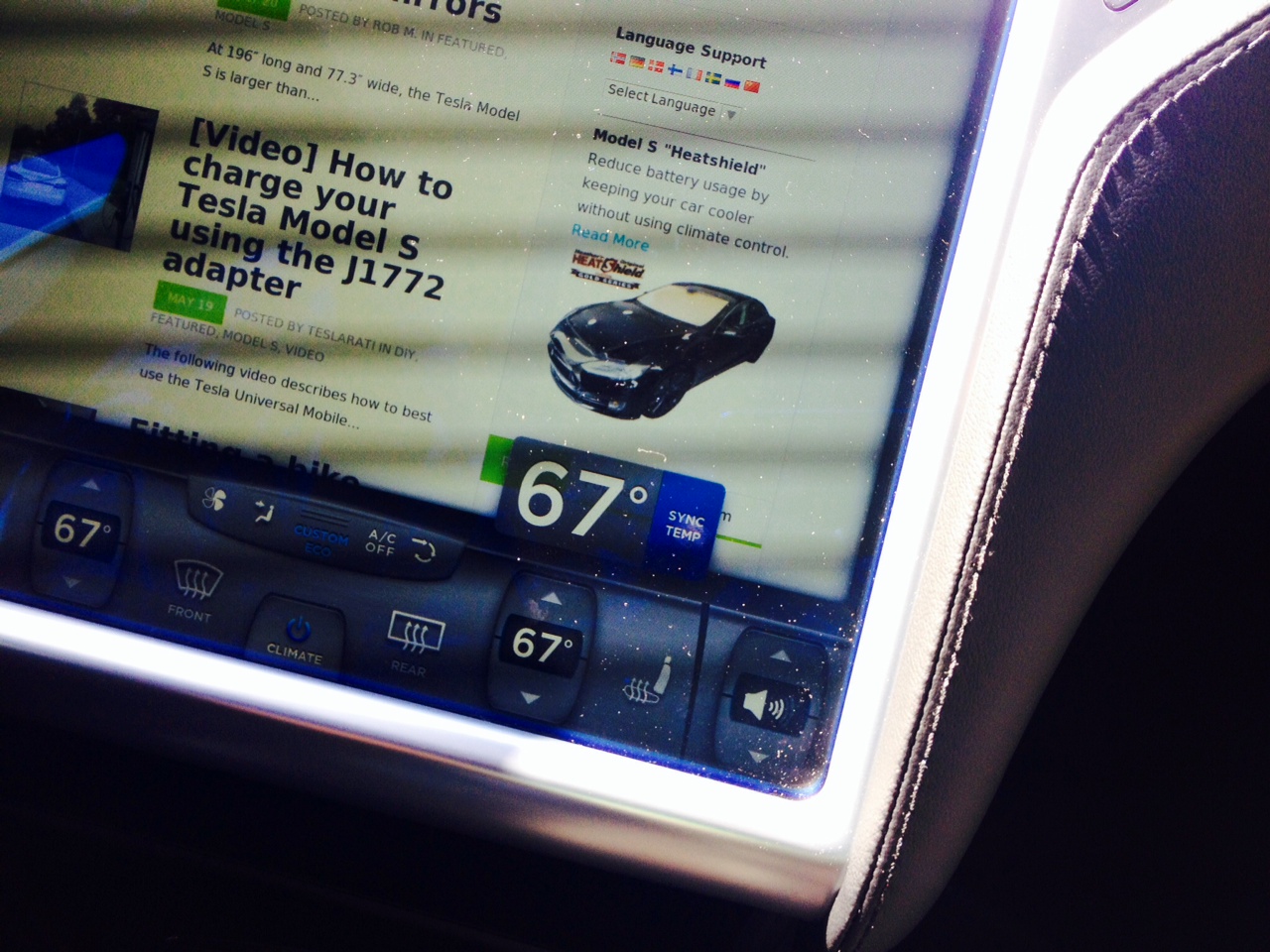
 TEMPERATURE SYNC: You can toggle passenger and driver temperature sync when the “settings” menu is being
displayed. Tap on the up temperature arrow and you can select or deselect the syncing of temperature. [Jammerdjc]- RESET CLOCK TIME & TIME ZONE: Tapping three times on the time displayed on the upper right hand corner of the screen will re-sync the time and time zone based on your location. [KmanAuto]
- SENDING URLS TO MODEL S BROWSER: Typing in URLs directly into the Model S browser can be a slow and arduous experience. A quick way to circumvent this is by adding URLs directly to a calendar event through your mobile or desktop device. From within the Model S Calendar App you’ll be able click on the URLs and view them from the car’s browser without having to type. [Rob M]


Firmware
Tesla unlocks in-car web conferencing to extend Google Meet, Teams and beyond
Tesla’s Summer Update lets owners join Google Meet, Teams, and Discord calls via cabin camera.

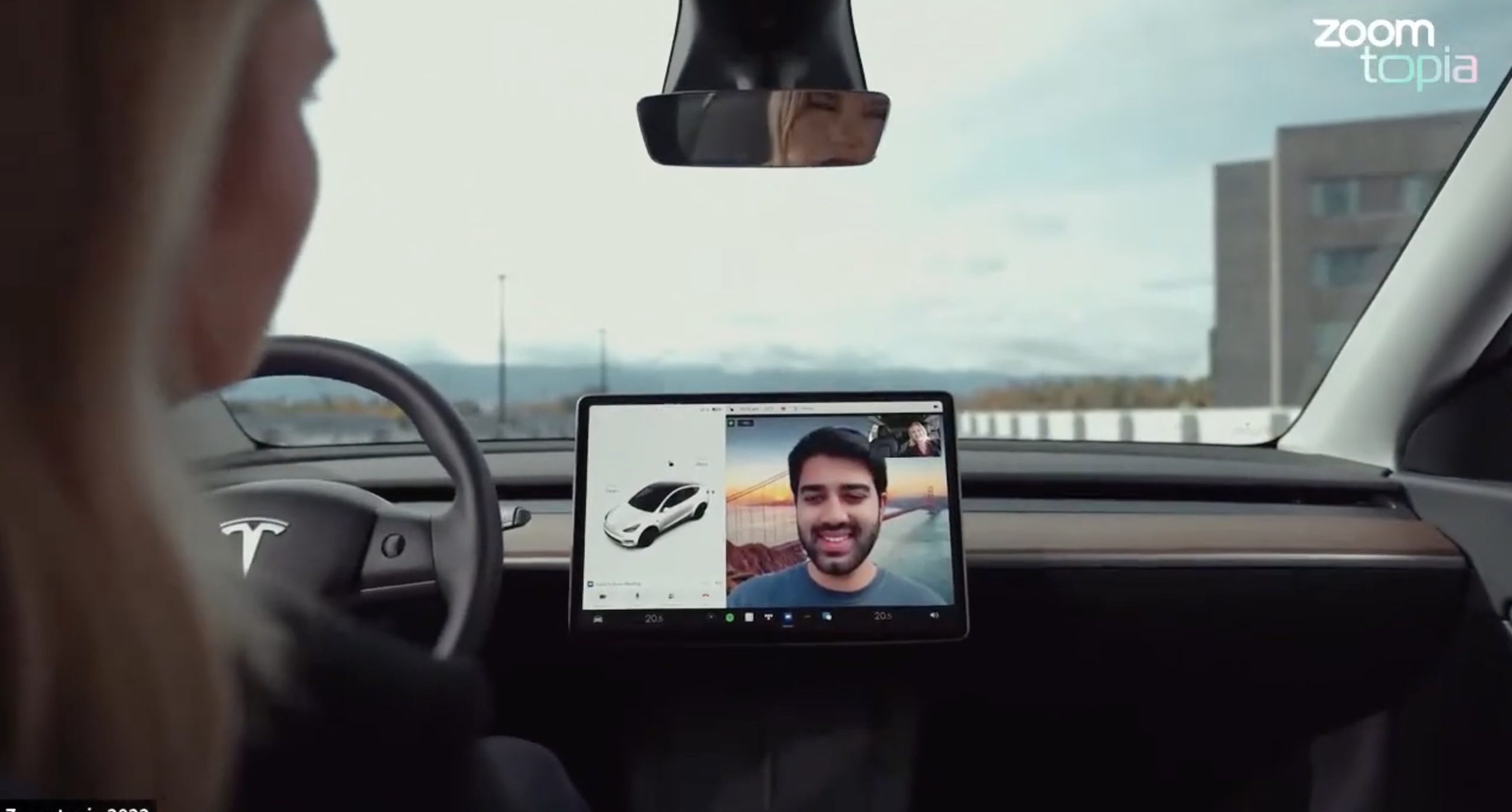
Tesla’s 2026 Summer Update, which just began rolling out to customer vehicles, now links the built-in web browser with the in-cabin camera feed and microphone input, thereby letting owners join video calls on nearly any browser-based service instead of just Zoom.
The change appears in Tesla’s own release notes for software version 2026.26 under “Web Browser,” which states that the vehicle can now use its interior camera and cabin microphone when a website requests access, with permission granted the same way a desktop browser handles it. As NotATeslaApp notes, this feature opens the door to Google Meet, Microsoft Teams, Discord, and other webcam-enabled sites to activate the in-car cabin-facing camera. The feed automatically crops and zooms to center the driver in frame.
Tesla has offered in-car video calling before, but only through a dedicated Zoom app that launched at the end of 2022, a stripped-down browser preloaded with Zoom’s own web client and gated behind Premium Connectivity. Opening the full browser to any camera-requesting site removes that walled garden. Elon Musk first called video conferencing “definitely a future feature” back in 2020, when the pandemic pushed remote meetings into daily life, so this update effectively finishes something Tesla has been promising for six years.
Tesla Summer Update begins rolling out: a look at the new features
The feature keeps the same restrictions that applied to Zoom on Tesla vehicles. It only works while the car is parked; shifting into Drive disables the camera feed, according to the release notes. It is also limited to vehicles running Tesla’s AMD Ryzen infotainment hardware, meaning older Intel-based Model S and Model X units, along with early Model 3 and Model Y builds, don’t get it.
Turning the browser into a general entry point for the in-cabin camera, rather than routing everything through one local app, widens the number of third-party sites that can ask for access, even though Tesla’s permission prompt.
With the Summer update only days into its rollout, be sure to stay with us on TikTok and X to see the latest video demonstrations.
Elon Musk
Tesla confirmed HW3 can’t do Unsupervised FSD but there’s more to the story
Tesla confirmed HW3 vehicles cannot run unsupervised FSD, replacing its free upgrade promise with a discounted trade-in.
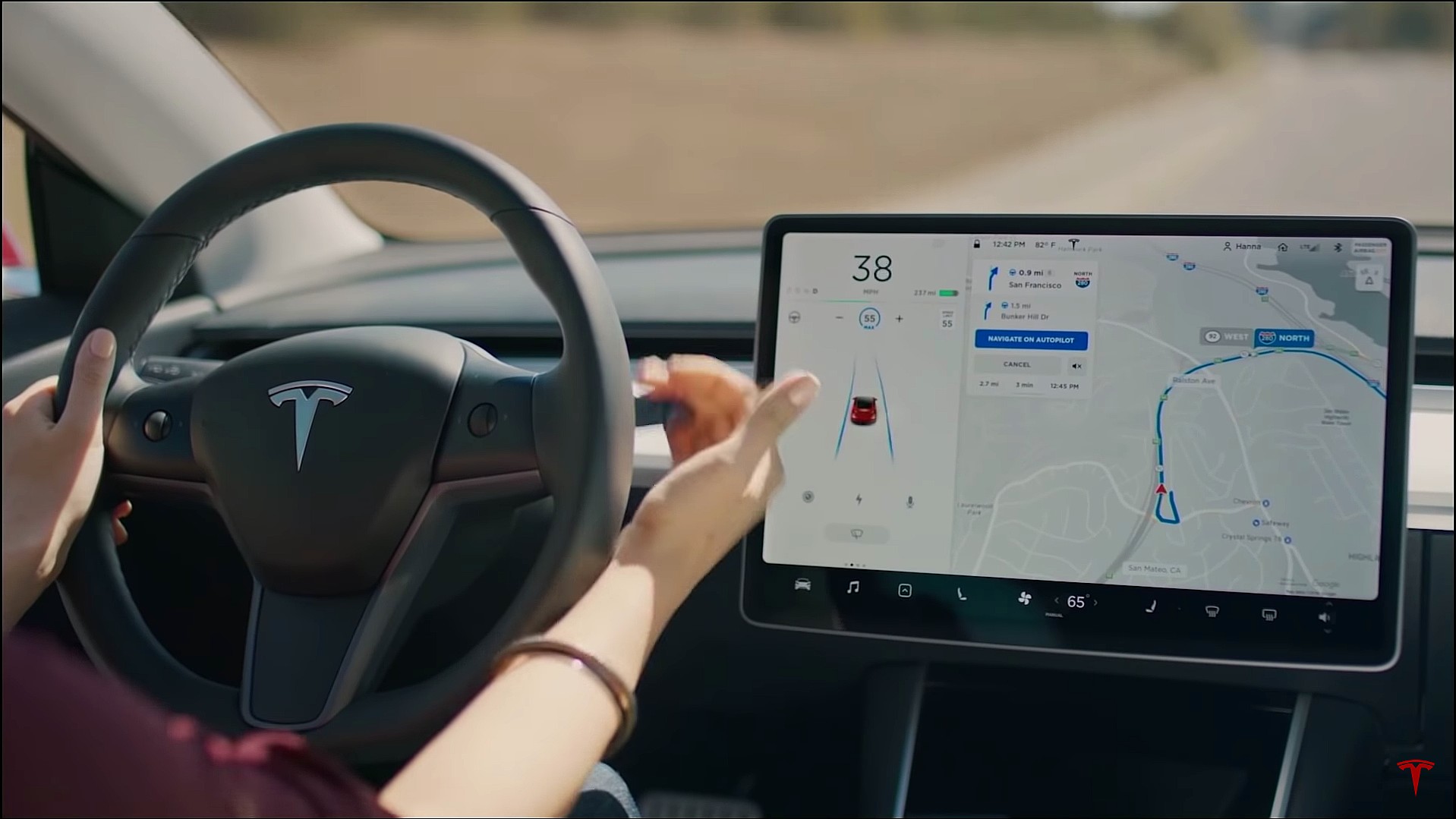
Tesla has officially confirmed that early vehicles with its Autopilot Hardware 3 (HW3) will not be capable of unsupervised Full Self-Driving, while extending a path forward for legacy owners through a discounted trade-in program. The announcement came by way of Elon Musk in today’s Tesla Q1 2026 earnings call.
🚨 Our LIVE updates on the Tesla Earnings Call will take place here in a thread 🧵
Follow along below: pic.twitter.com/hzJeBitzJU
— TESLARATI (@Teslarati) April 22, 2026
The history here matters. HW3 launched in April 2019, and Tesla sold Full Self-Driving packages to owners on the understanding that the hardware was sufficient for full autonomy. Some owners paid between $8,000 and $15,000 for FSD during that period. For years, as FSD’s AI models grew more demanding, HW3 vehicles fell progressively further behind, eventually landing on FSD v12.6 in January 2025 while AI4 vehicles moved to v13 and then v14. When Musk acknowledged in January 2025 that HW3 simply could not reach unsupervised operation, and alluded to a difficult hardware retrofit.
The near-term offering is more concrete. Tesla’s head of Autopilot Ashok Elluswamy confirmed on today’s call that a V14-lite will be coming to HW3 vehicles in late June, bringing all the V14 features currently running on AI4 hardware. That is a meaningful software update for owners who have been frozen at v12.6 for over a year, and it represents genuine effort to keep older hardware relevant. Unsupervised FSD for vehicles is now targeted for Q4 2026 at the earliest, with Musk describing it as a gradual, geography-limited rollout.
For HW3 owners, the over-the-air V14-lite update is welcomed, and the discounted trade-in path at least acknowledges an old obligation. What happens next with the trade-in pricing will define how this chapter ultimately gets written. If Tesla prices the hardware path fairly, acknowledges what early adopters are owed, and delivers V14-lite on the June timeline it committed to today, it has a real opportunity to convert one of the longest-running sore subjects among early adopters into a loyalty story.
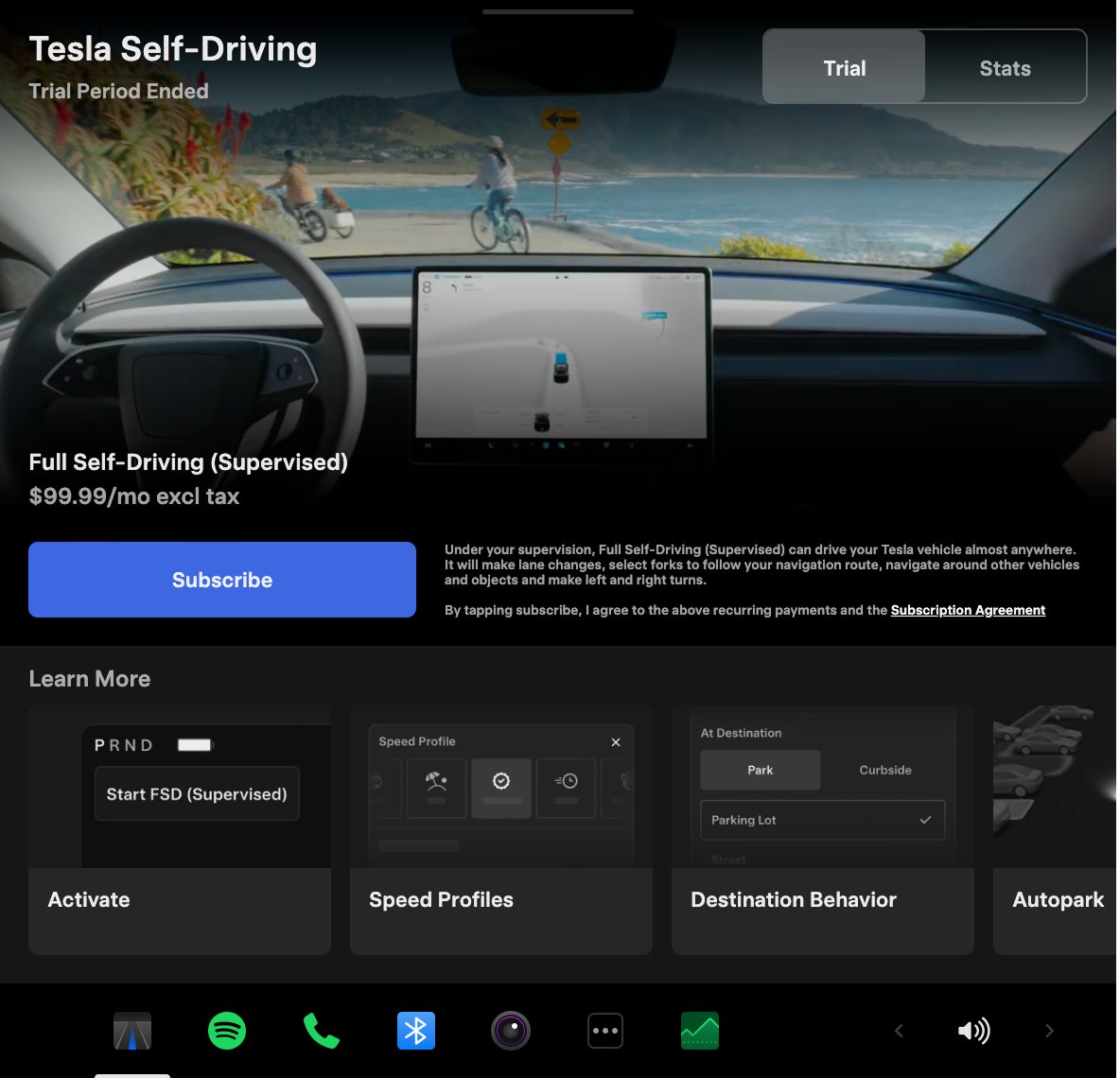
Tesla announced its Spring 2026 software update, and it’s the most feature-dense seasonal release the company has put out. The update covers twelve named changes spanning FSD, voice AI, safety lighting, dashcam storage, and pet display customization, among other things.
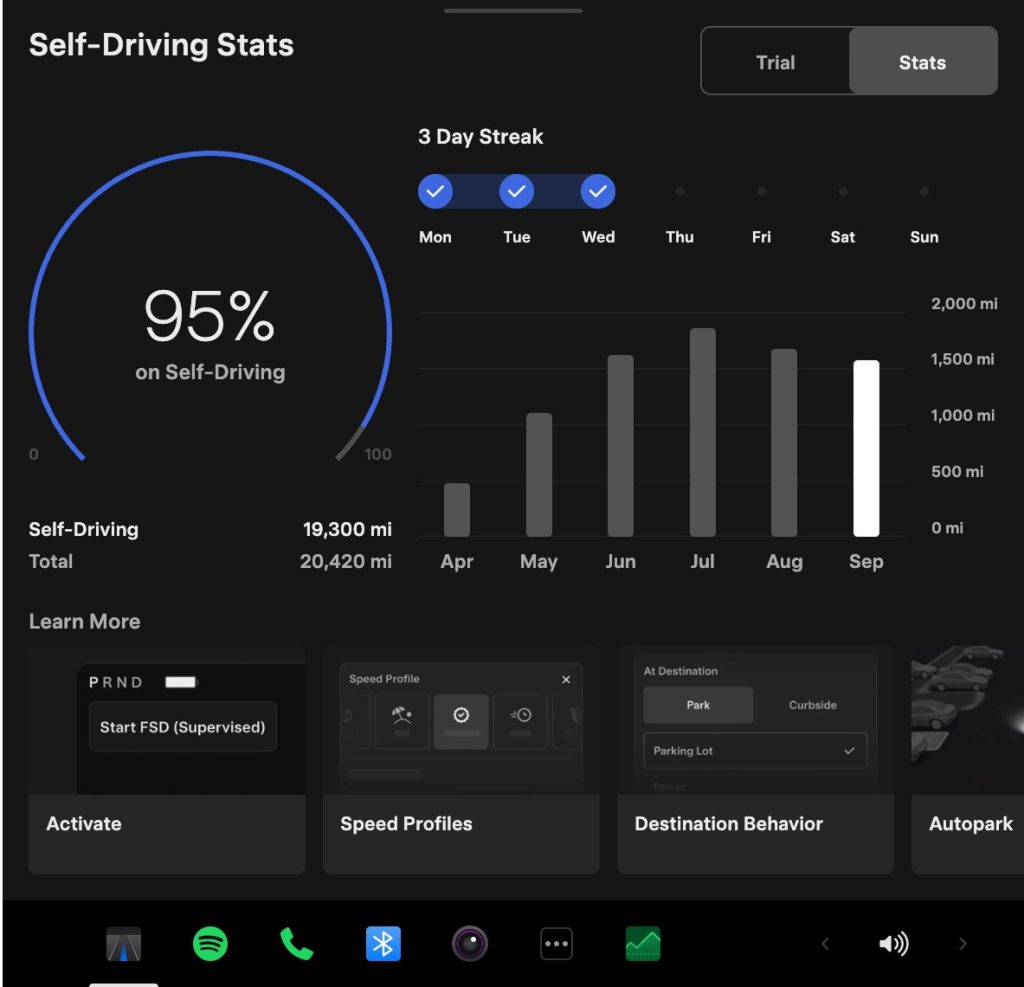
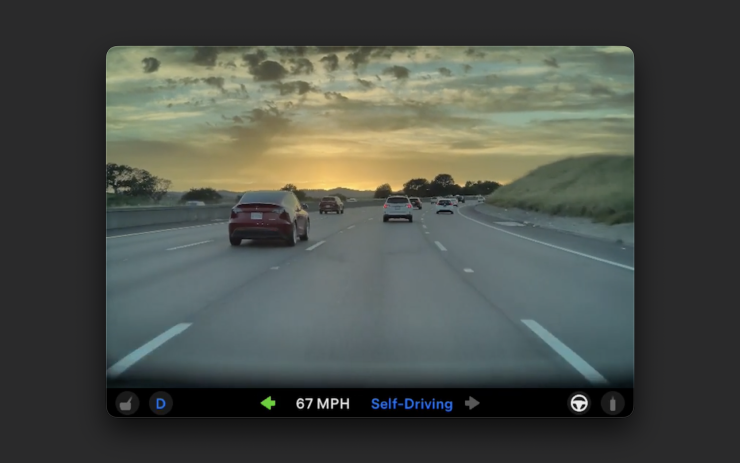
The centerpiece for owners with AI4 hardware is a redesigned Self-Driving app. The new interface lets owners subscribe to Full Self-Driving with a single tap and view ongoing FSD usage stats directly in the vehicle.
Grok gets its biggest in-car upgrade yet. The update adds a “Hey Grok” hands-free wake word along with location-based reminders, so a driver can now say “remind me to pick up groceries when I get home” without touching the screen. Grok first arrived in vehicles in July 2025, but each update has pushed it closer to genuine daily utility. Musk framed the broader vision clearly at Davos in January, saying Tesla is “really moving into a future that is based on autonomy.”
On safety, the update introduces enhanced blind spot warning lights that integrate directly with the cabin’s ambient lighting, building on the blind spot door warning that arrived in update 2026.8.
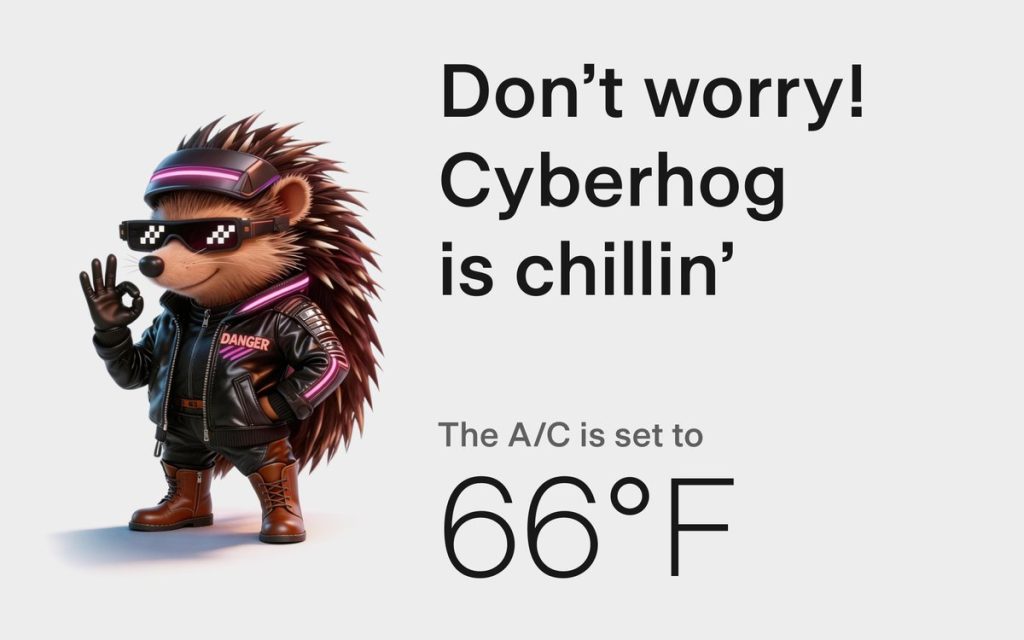
Dog Mode has been renamed Pet Mode and now lets owners choose a dog, cat, or hedgehog icon and add their pet’s name to the display.
Dashcam retention now extends up to 24 hours, up from the previous one-hour rolling loop, with a permanent save option for any clip. Weather maps now show rain and snow with better color differentiation and include the past hour of precipitation data along the route.
Tesla has now established a clear rhythm of two major OTA pushes per year. As with last year’s Spring update, that cycle started taking shape in 2025 with adaptive headlights and trunk customization. The 2025 Holiday Update then added Grok to the vehicle for the first time. This Spring follows that structure: the Holiday update introduces new architecture, and the Spring update broadens it across the fleet.
Two notable features still did not make it. IFTTT automations, which launched in China earlier this year, were held back from this North American release for unknown reasons, and Apple CarPlay remains absent, reportedly still delayed by iOS 26 and Apple Maps compatibility issues.
Below is the full list of feature updates released by Tesla.
— Tesla (@Tesla) April 13, 2026

FCC green lights SpaceX’s move to a showdown with Verizon and AT&T

Tesla’s Roadster appearance at SpaceX has merger watchers talking


