Lifestyle
How to repair your Tesla Model S Door handle (DIY Kit)

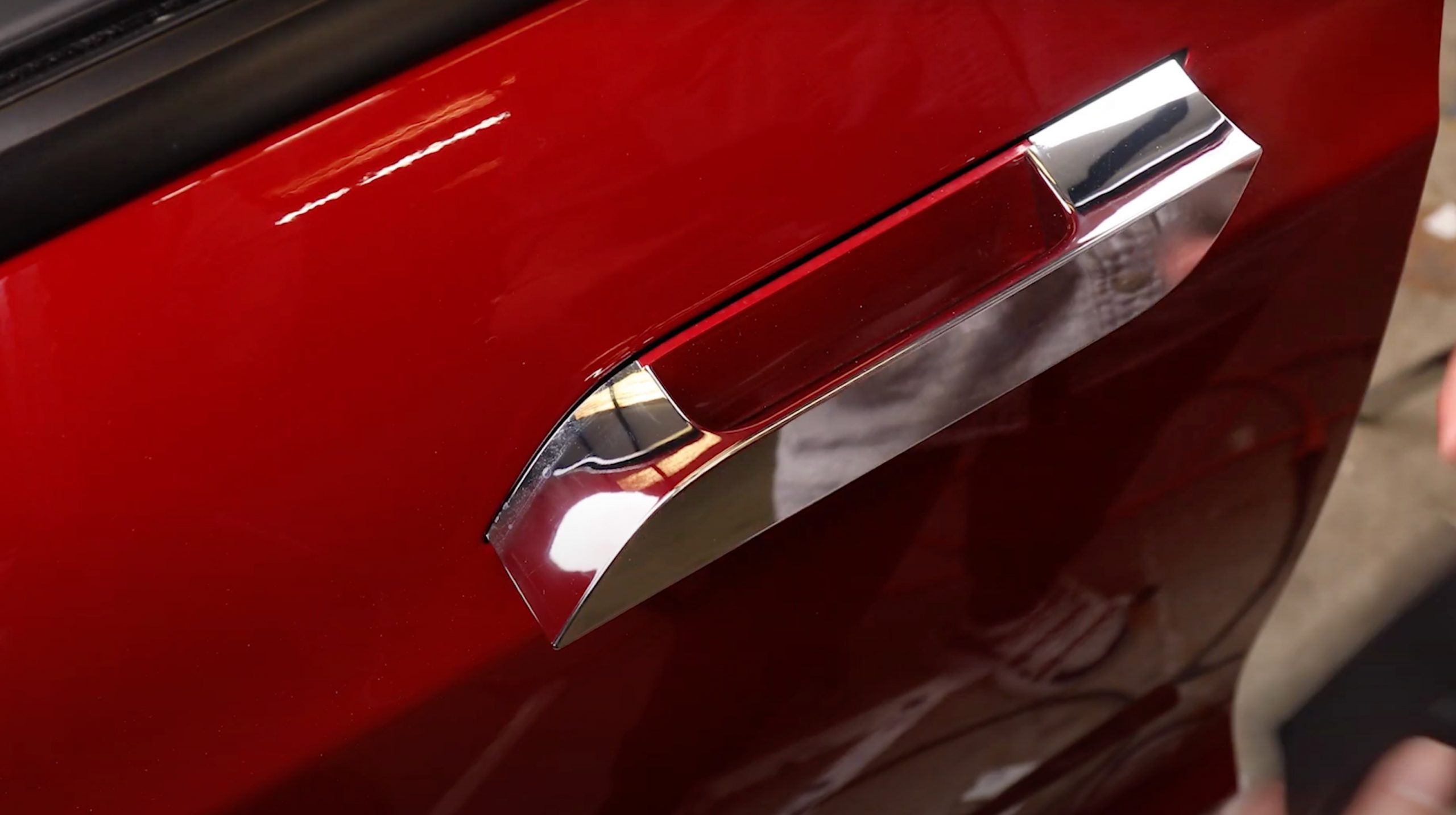
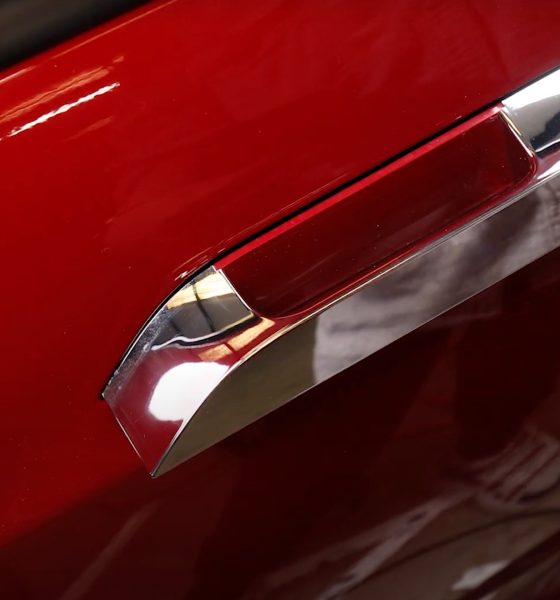
The sudden failure of Tesla Model S self-presenting door handles as a result of component failure is a common and often aggravating experience for many early owners.
The design of the earlier Model S door handle was comprised of cheaper, cast components that often led to breakage, which Tesla finally addressed in the 3rd Gen of Model S door handles.
Under warranty, the answer is simple; call the service center, and schedule an appointment for a replacement, but for many early Model S owners, their warranty has been long gone, and thus stuck with an expensive repair bill that ran upwards of $1000.00 per self-presenting door handle. It also requires a special calibration that only the service center can perform.
The owners of the Electrified Garage have addressed this common issue with a comprehensive DIY Model S Door Handle Rebuild Kit that any handy person can tackle.
The kit includes a stronger machined stainless steel gear, a new e-clip for retaining the pivot gear on the shaft, Original Equipment Panasonic replacement micro-switches, push nuts to hold the vapor barrier securely, and new door panel clips.
Here’s a basic guideline on how to repair your Model S door handle.
To remove the door handle assembly
- With the door opened, pull the hatch into a position as if you were opening the door.
- Pop off the trim piece with a flat tool, like a flathead screwdriver. Do not apply excessive force.
- Use a Torx T30 bit to remove the two screws behind the door hatch.
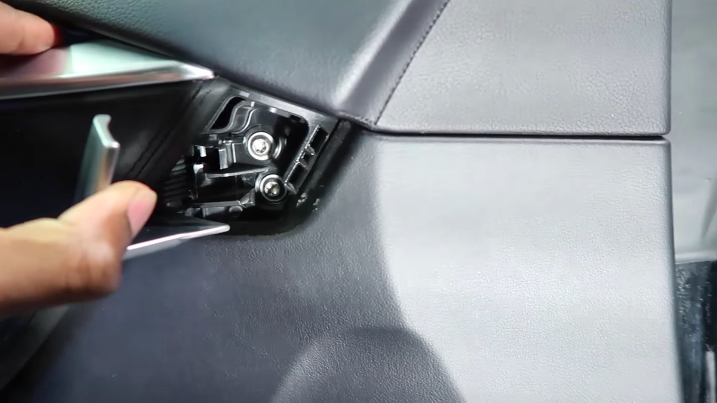
- Use the 9mm socket wrench to remove the single bolt that lies under the door handle.
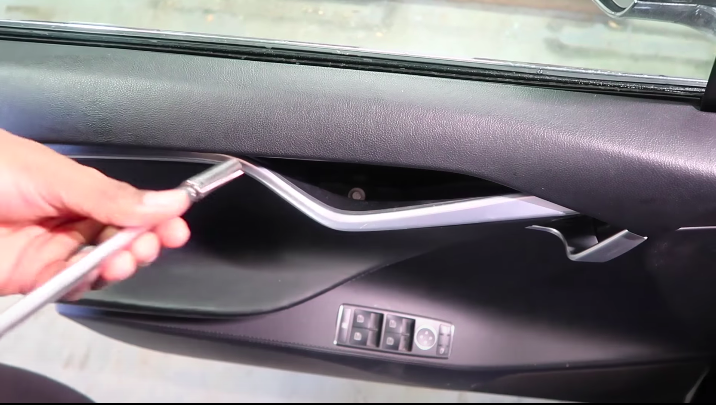
- Use your hands to pop the speaker grille off from the bottom portion of the door.
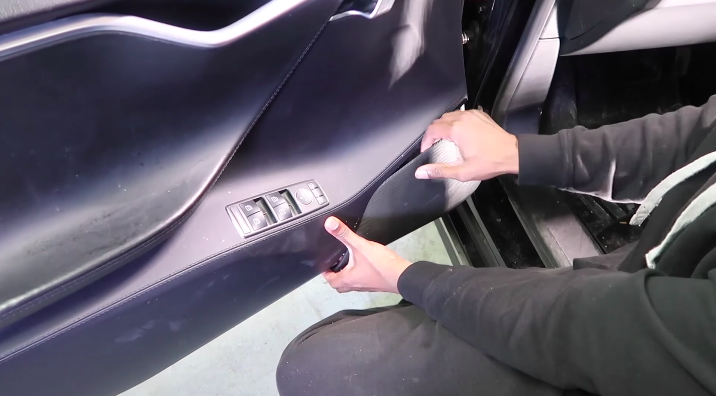
- Then grab the underside above the speaker and the door handle and pull the door covering off firmly.
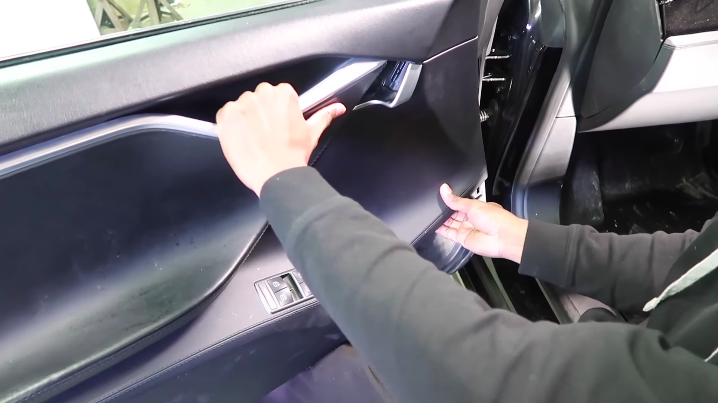
- Remove any wiring that connects the door covering to the door itself. This includes lights, speaker system wires, and door sensor connectors.
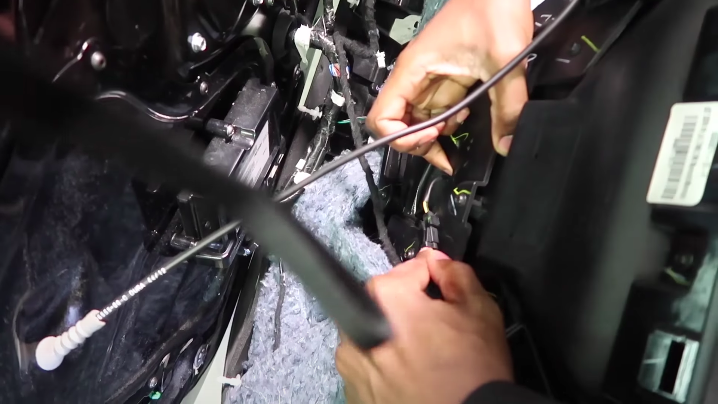
- Use a Torx T20 bit to remove the door cover panel. There will be five screws to remove.
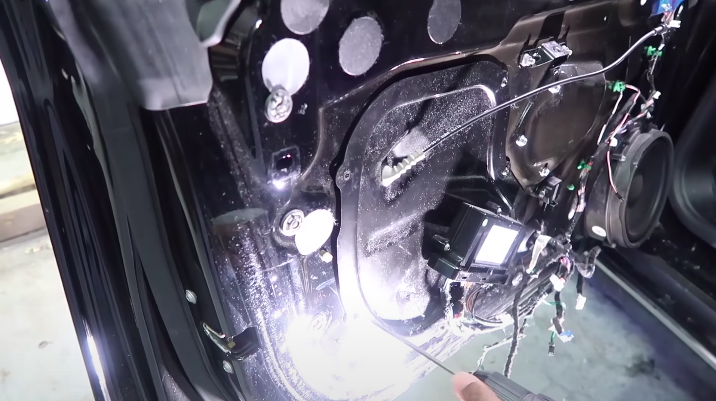
- Use a flathead to push the rubber gasket through the hole on the panel that was most recently removed.
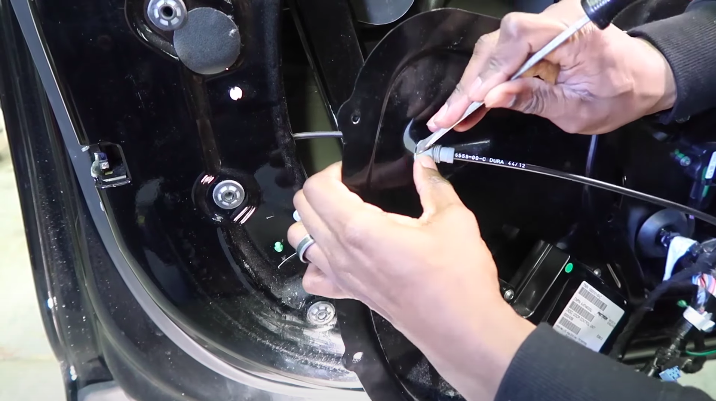
- Use a flathead to push the switch on the side of the door. This will trick the window into thinking the door is closed, which will push the window glass upward. It will give you easier access to screws at the top of the door frame.
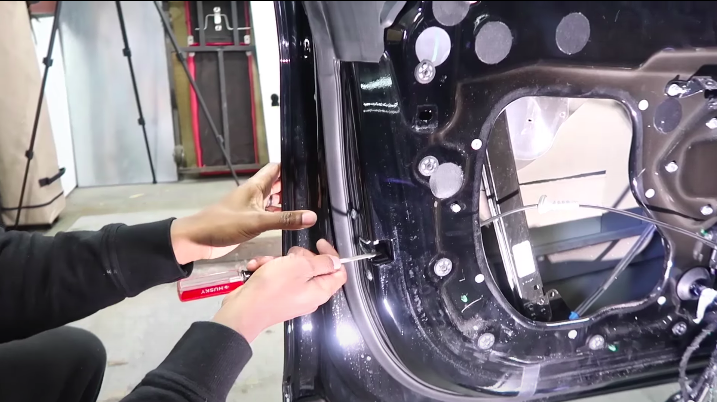
- Use a trim removal device or flat tool to remove the small white piece from the door panel. This secures the door handle harness into place.
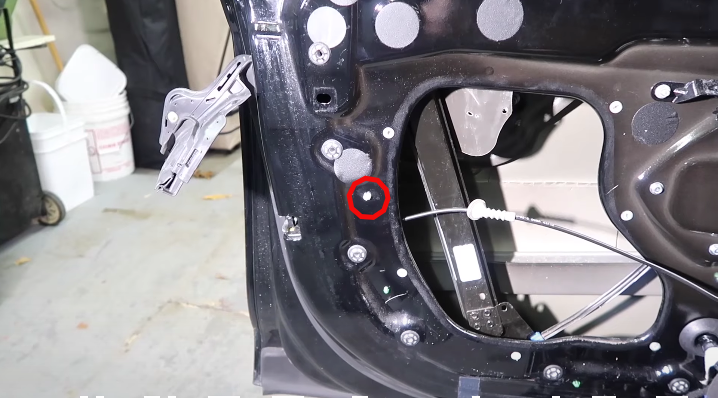
- Unplug the door handle harness.
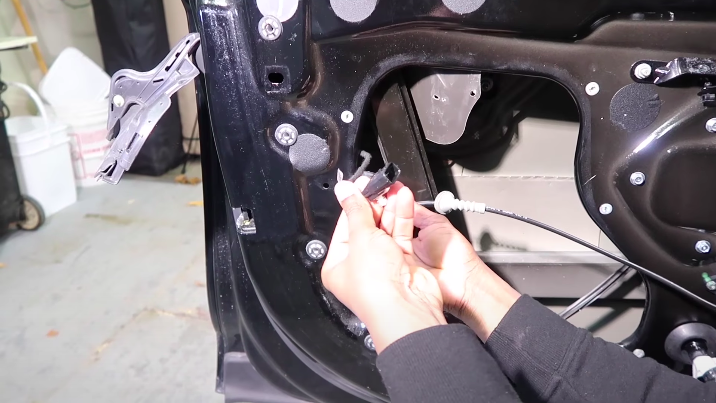
- Remove the two black plastic door covers from the door panel that are shown below. This is done by simply pressing from the back of the pieces with your hand.
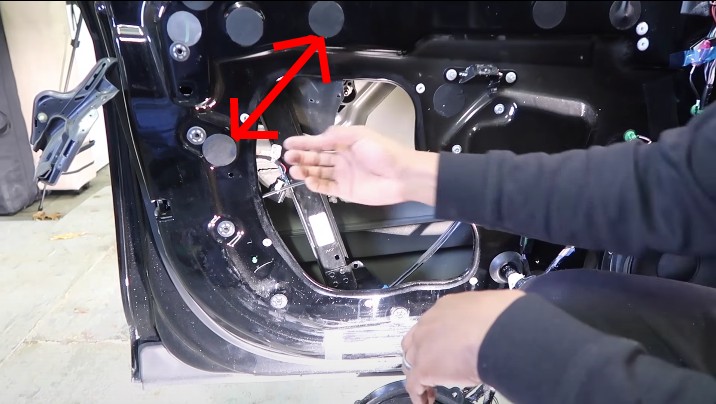
- Use a 10mm socket wrench to remove the two bolts that are in each of these two holes and another that lies within the open space in the center of the door.
-
- Push the door handle on the exterior of the door back into the door assembly. Use your right hand to stabilize the door and your left hand to push the door handle in.
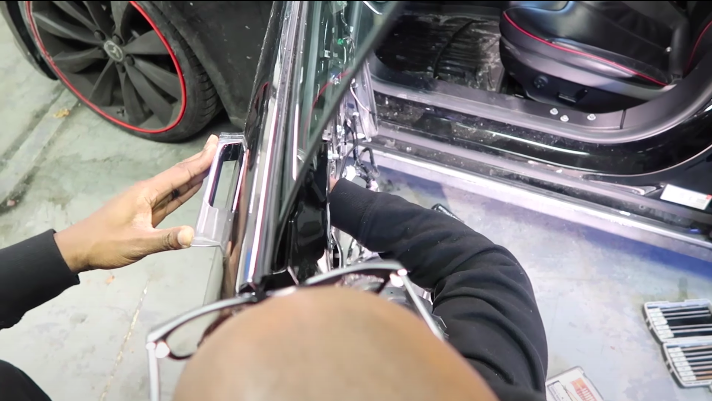
- Reconnect the blue window power wire into the appropriate connection point. This is located at the bottom of the door. Once this is completed, roll the window down and disconnect the connection once again.
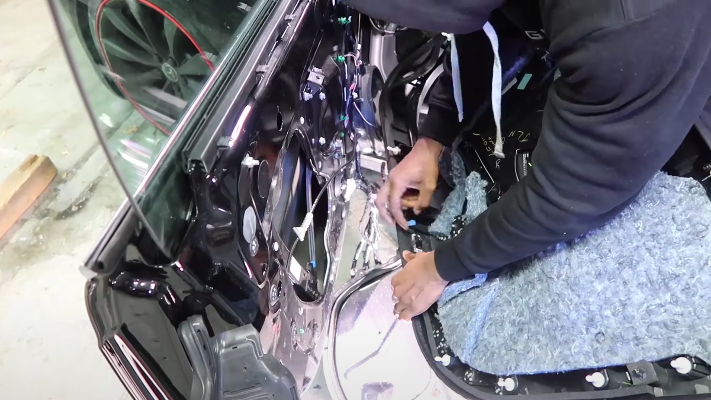
- Grab the top chrome-colored trim piece located at the top of the outside of the door. Gently remove this piece by slightly pulling and working your way down the piece. Do this gradually and try not to remove it in one pull. It could damage the trim or the door itself.
-
- Remove the bolt located under the chrome trim piece. It is easiest to do this with a regular wrench and slowly loosen. You can wrap the wrench in electrical tape to prevent possible scratching of the window glass.
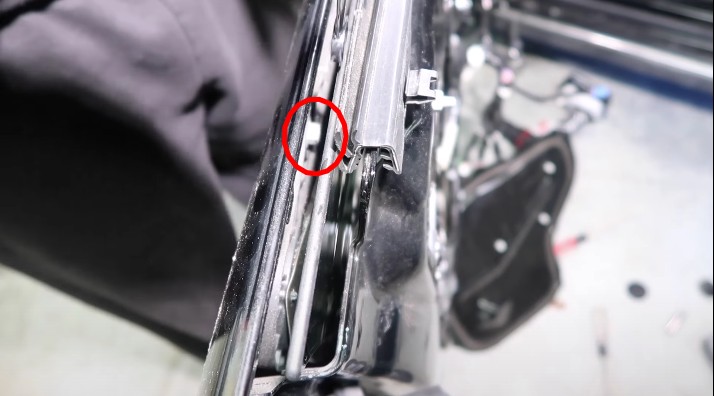
- Reconnect the blue window power connector once again and roll the window all the way up. Once the window is rolled up, disconnect the connector wire once again.
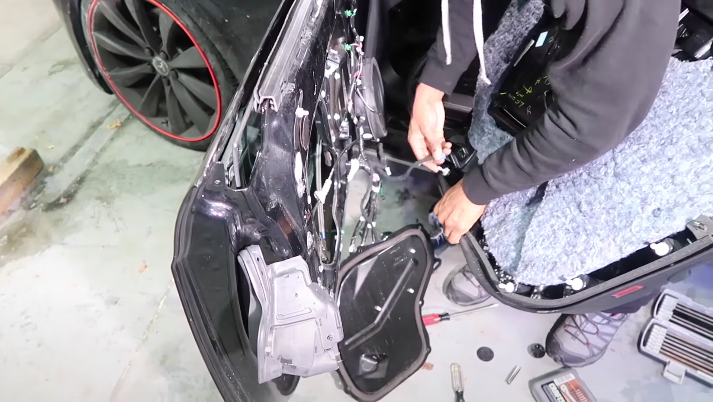
- The door assembly can then be pulled out. Pull in a firm, controlled fashion.
-
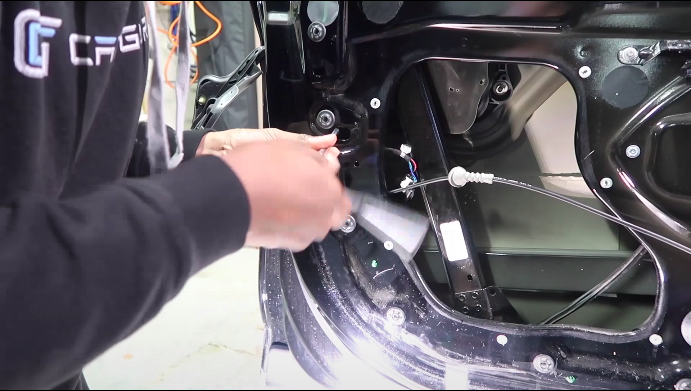
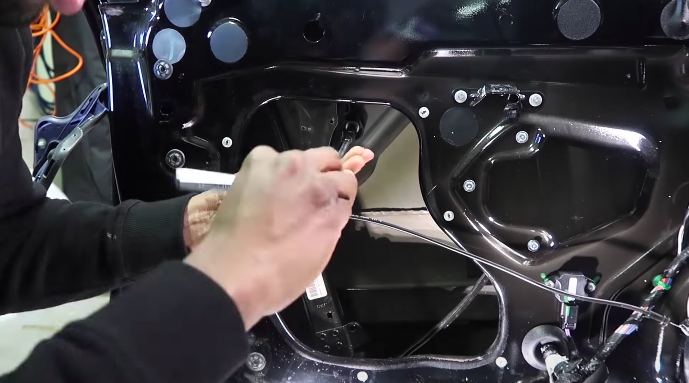
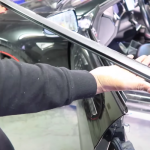
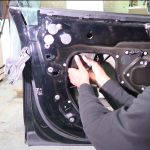
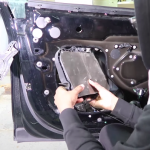
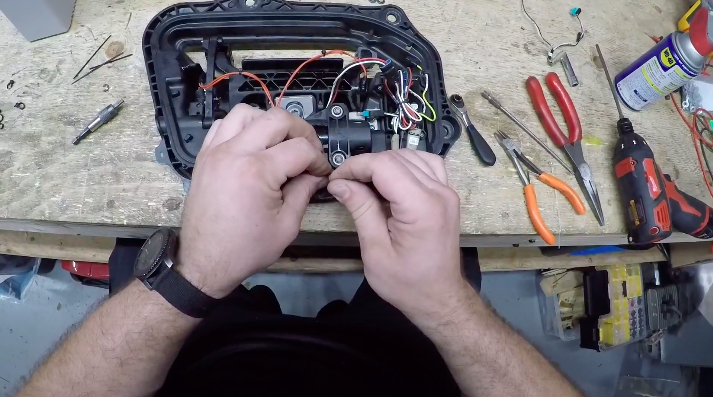
To repair the door assembly:
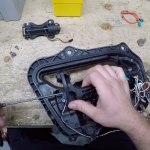
- Remove the vapor cover from the assembly. This is usually connected with zip ties. Be careful to not cut any wires while removing.
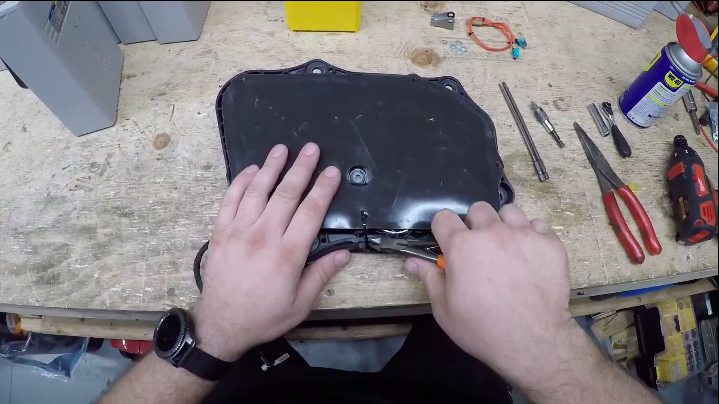
- Remove the five centrally located bolts with the correctly-sized Torx bits.
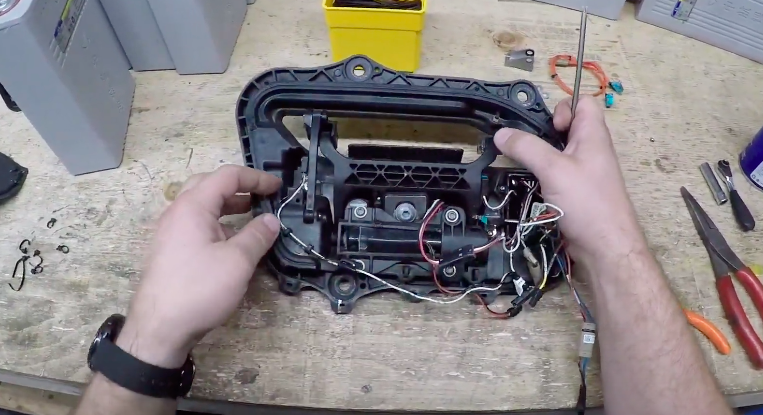
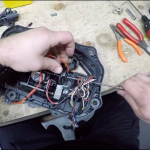
- Remove the motor, which is the small cylindrical black piece held in by these bolts.
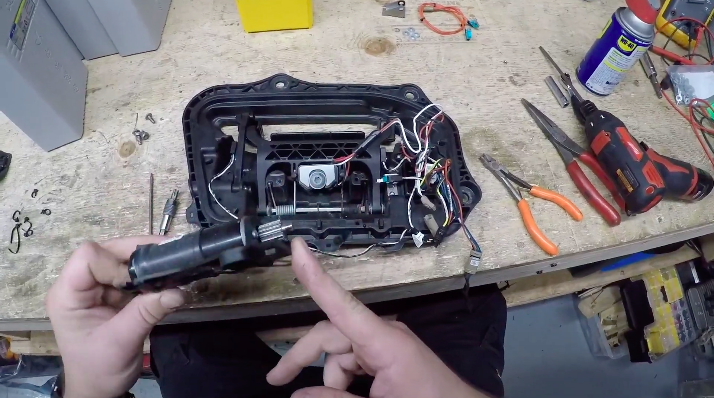
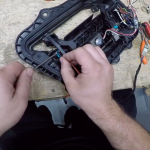
- Remove the two screws that maintain the position of the door handle.
-
- Remove the pin that is housed on the rear side of the assembly. This can be lubricated with WD-40 and pushed out with a pair of needlenose pliers.
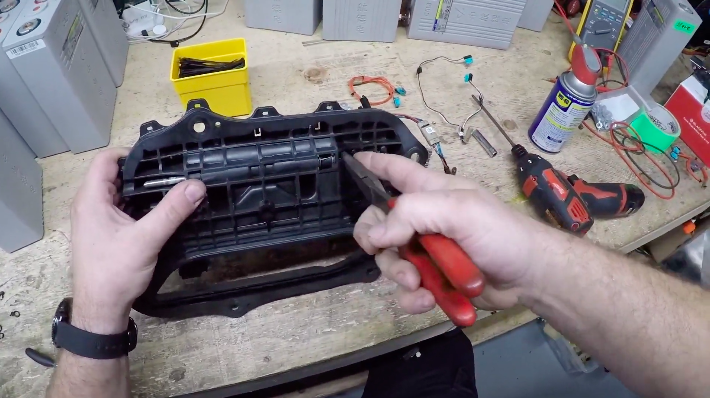
- Install the new gear into the door assembly by pressing down on the door handle.
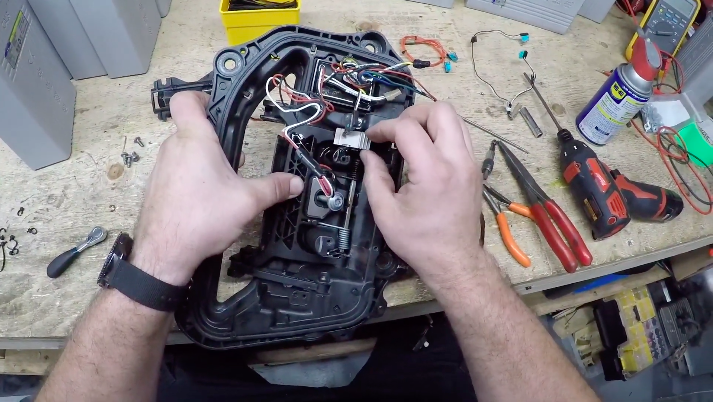
- Slide the pin back through and make sure the center notch on the pin is aligned with the middle slot. Install a new metal clip from the kit in the center notch.
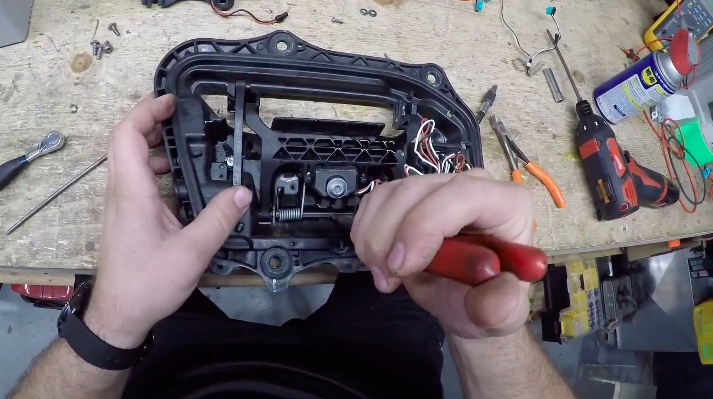
- Reinstall the screws that were removed in Step 4.
-
- Resecure the main power wire for the door handle to the bottom of the assembly with zip ties.
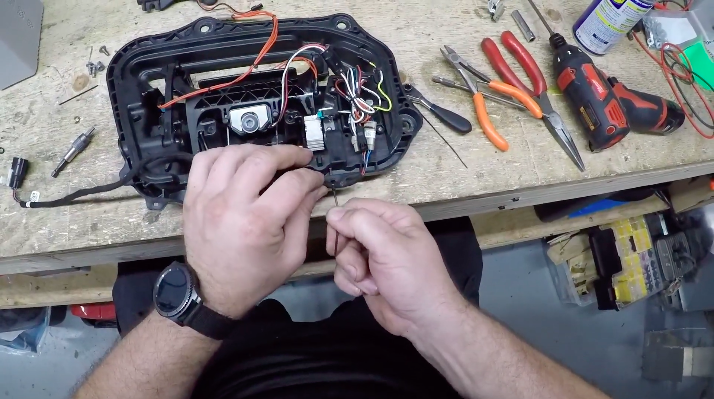
- Reinstall the motor from Step 3 and resecure it with the appropriate screws.
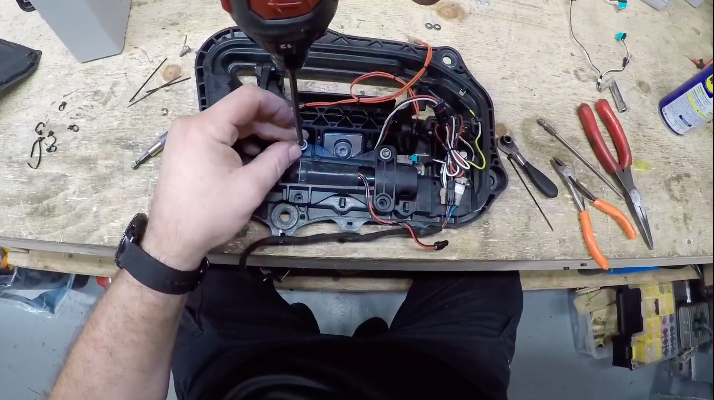
- Resecure all wires with zip ties and reapply the vapor cover.
-
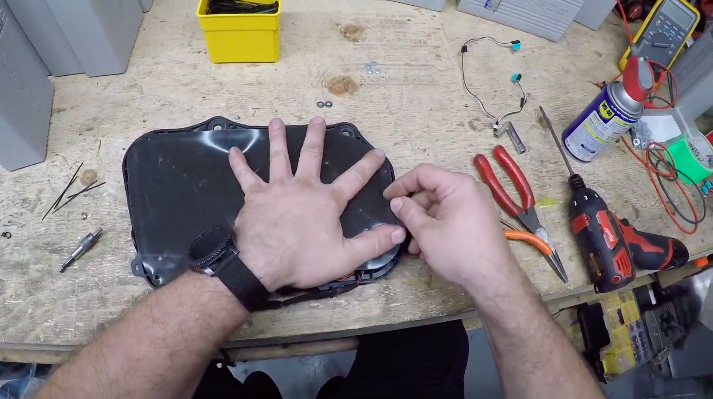
Tesla Model S Door Handle DIY Repair Kit


Elon Musk
How to use Grok Bot to block spam calls and texts
Musk told users to ask Grok Bot to scrub their phone numbers from spam lists.

Elon Musk has a new use case for Grok Bot, and it is the spam call. On Thursday he replied to an X user named Arash with a short instruction: “Ask your @Grok @Bot to remove your phone number from spam call & text lists!” Arash had said he got tired of the calls, had an AI bot find his number on listing sites and file removal requests, and packaged the process as a free skill for others.
The skill is called Spam-Call Scrubber, which is described to find a phone number on people search sites and data brokers, submits the opt outs, completes the confirmation emails those sites send back, and rechecks on a schedule the user picks. Using it requires the Grok Bot app. The pitch is time saved, since most broker opt outs sit behind separate forms on separate sites.
Ask your @Grok @Bot to remove your phone number from spam call & text lists!
— Elon Musk (@elonmusk) October 15, 2026
Musk said Grok Bot now gives each bot its own email address, and that it can detect scam emails. On Thursday he also said SpaceX would make users whole if the bot botches a purchase or leaks a card, then told users to shop away from Amazon after the retailer blocked the agent, as Teslarati reported. The terms of service we reviewed at the time put responsibility for what an agent does on the user.
For Tesla owners, Grok Bot is not just a phone app. Tesla brought Grok Bot into its vehicles on September 22, and we argued earlier this week that the Cybercab’s real advantage may be the errands it runs during a ride. Every Cybercab and the rest of the Model Y Robotaxi fleet has it enabled. The more routine tasks like this one become, the more a rider has reason to hand over something personal in the back seat.
The new Spam-Call Scrubber skill can be downloaded for free and works on sites that honor removal requests, while noting that listings can reappear, and illegal robocallers do not check any registry. Whether Spam-Call Scrubber cuts anyone’s call volume is something the first wave of users will find out, and Musk’s endorsement guarantees that wave is coming.
For a century, the car has asked the same thing of its owner, which is basically to pay attention. Even the best ride-hailing app like Uber or Lyft only moved the problem into someone else’s hands. You stopped driving, but you still sat in a stranger’s car, while half listening, and wondering whether to take a phone call in the car without being rude. The Cybercab has no wheel, no pedals and no driver. With Grok @bot now live inside it, it becomes something else entirely, and I think that matters more than the fleet count that everyone is tracking.
Grok @bot is an agent, not a voice assistant. A rider signs in once, and from then on can say what they need and watch it happen. Order dinner from a favorite restaurant. Fill the grocery cart. Move money, answer email, adjust a calendar, push a work project forward. Tesla engineer Yun-Ta Tsai confirmed it is enabled across every Cybercab and the rest of the Model Y fleet, and Tesla’s own pitch is that Full Self-Driving handles the commute while Grok handles the errands.
Think about what that does to a thirty minute ride. Uber sells you a trip, while Waymo sells you the same trip in a more private setting. Tesla is selling the thirty minutes themselves, returned to you with an assistant attached. Errands that used to eat a Saturday get done between pickup and drop off. The ride stops being dead time between two places and becomes a place of its own.
Tesla integrates Grok Bot into its vehicles for the ultimate personal assistant
Best of all, your Bots follow you into any Cybercab, and presumably your own Tesla, then logs you out automatically when you step out. Anyone can bolt a chatbot onto a screen, but much harder to own the vehicle, the autonomy stack and the assistant at once. It also quietly ties SpaceX’s Super Intelligence business to Tesla’s fleet, after Tesla converted its xAI stake into SpaceX equity. The relationship between those two companies is getting harder to describe as separate.
This is also where the hard questions start, because an agent that can spend your money in a vehicle other people also ride in needs some answers. How does it handle a voice it shouldn’t trust? What gets recorded, who can see it, and for how long? What happens when a rider leaves halfway through a task?
If Tesla gets those answers right, the scoreboard changes. We have been counting Cybercabs and wait times. The more telling number may be what riders accomplish per trip. That is data almost no one else will ever have, and it is the real reason to watch Grok @bot.
What do you think? Leave me a comment.
Lifestyle
Tesla’s mirrorless Cybercab will give riders a visibility upgrade
Tesla engineer confirms Cybercab update letting riders pull up rear and repeater cameras on demand.
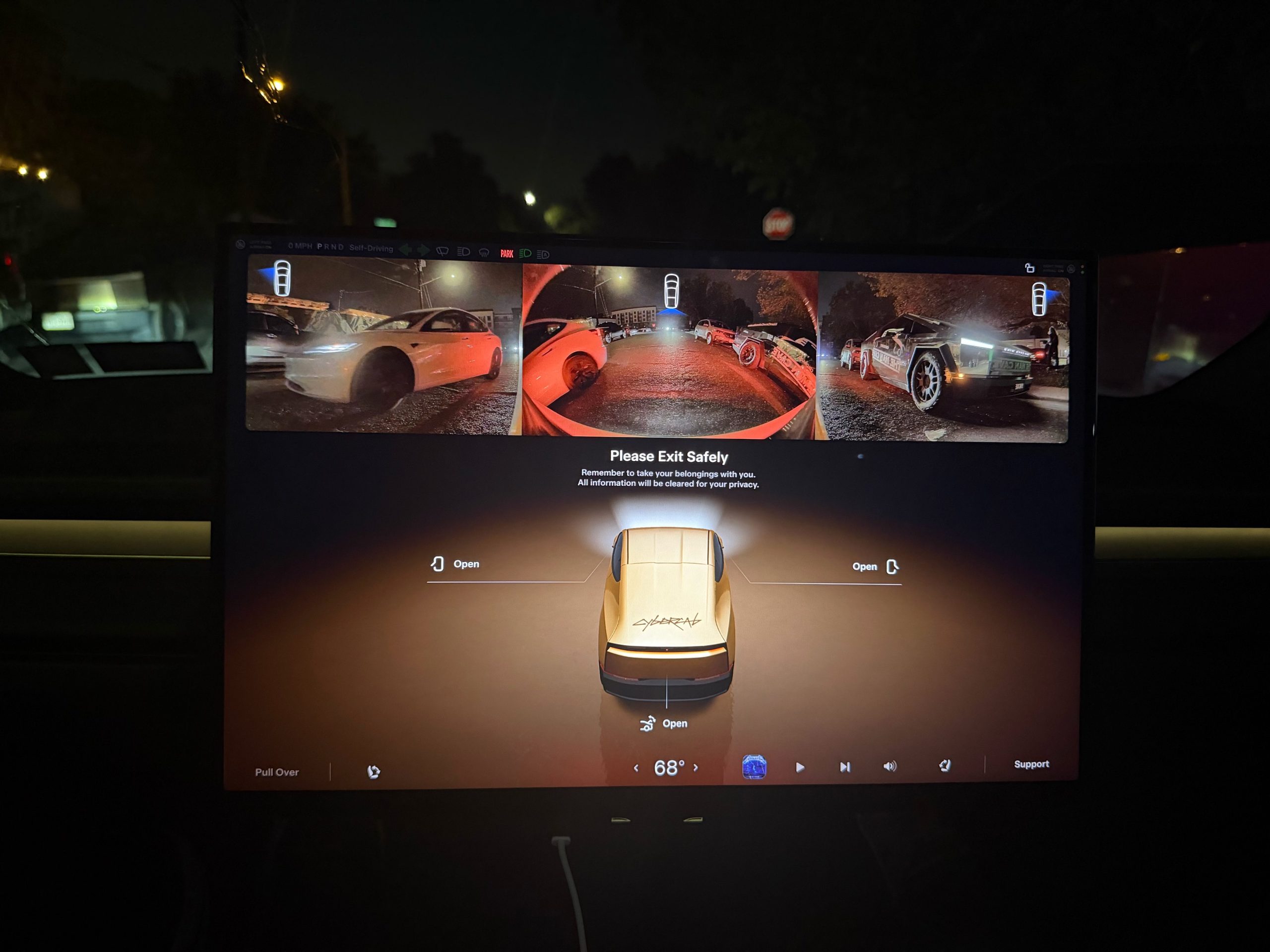
Tesla is working on a Cybercab update that would let passengers pull up the vehicle’s rear and side cameras on demand, and the request came straight from a rider.
The exchange played out on X late Friday. Cybercab rider Dan Burkland shared photos of the two-seater’s cabin screen after an evening ride, praised the UI team’s work, and left one request: let riders open the rear and repeater cameras whenever they want, “especially for peace of mind.” Tesla UI software engineer Evan (@CarCoder) answered with two words: “In development.”
The Tesla UI team absolutely crushed it with the infotainment software. Nicely done @CarCoder!
One feature request: Allow folks to pull up the rear & repeater cameras on demand. This would be great especially for peace of mind. https://t.co/mNAOSLx6pE
— Dan Burkland (@DBurkland) October 10, 2026
The idea fits a pattern Teslarati has tracked since public rides began. Days after paid Cybercab service opened in Austin, Tesla sent riders a survey that asked them to rate the touchscreen, the app and the cabin, and to pick the features they wanted most. We reported on that survey in September, and a camera view is the kind of small software change Tesla can push quickly if riders keep asking.
It also speaks to something unique about the vehicle. With no steering wheel, no pedals and no driver, passengers have no mirror to check and no way to see behind them. The hardware is clearly built for camera awareness, from the repeater cameras to the rear camera. Letting a passenger look through those same cameras would give a nervous first time rider a way to confirm what is around the car.
The timing matters because the fleet is growing fast. Tesla’s Robotaxi account said on Saturday that more than 300 Cybercabs are now serving Austin, an eightfold increase in 30 days, and Tesla AI chief Ashok Elluswamy named Dallas as the next city. More cars and more cities mean more people riding in a driverless vehicle for the first time, which is exactly when small trust features carry weight.
For now, the feature is confirmed only as in development. If Tesla follows its usual pattern with Cybercab software, riders could see it appear in a point release without any announcement, and Teslarati will watch for it.

SpaceX delivers blockbuster Q3 results as Super Intelligence segment booms

SpaceX reports its second earnings today: here’s what to expect

SpaceX just launched its secret Starfall saucer again

SpaceX reveals how its 1 Million AI satellite network will work and prevent space collisions

Tesla Roadster: Three configs, one can fly, 0-60 in 0.8 seconds


